
Search History
Every search you run is saved automatically, so there is no need to export as you go. When you have finished exploring a topic, open your history and pick up any result exactly as it was.
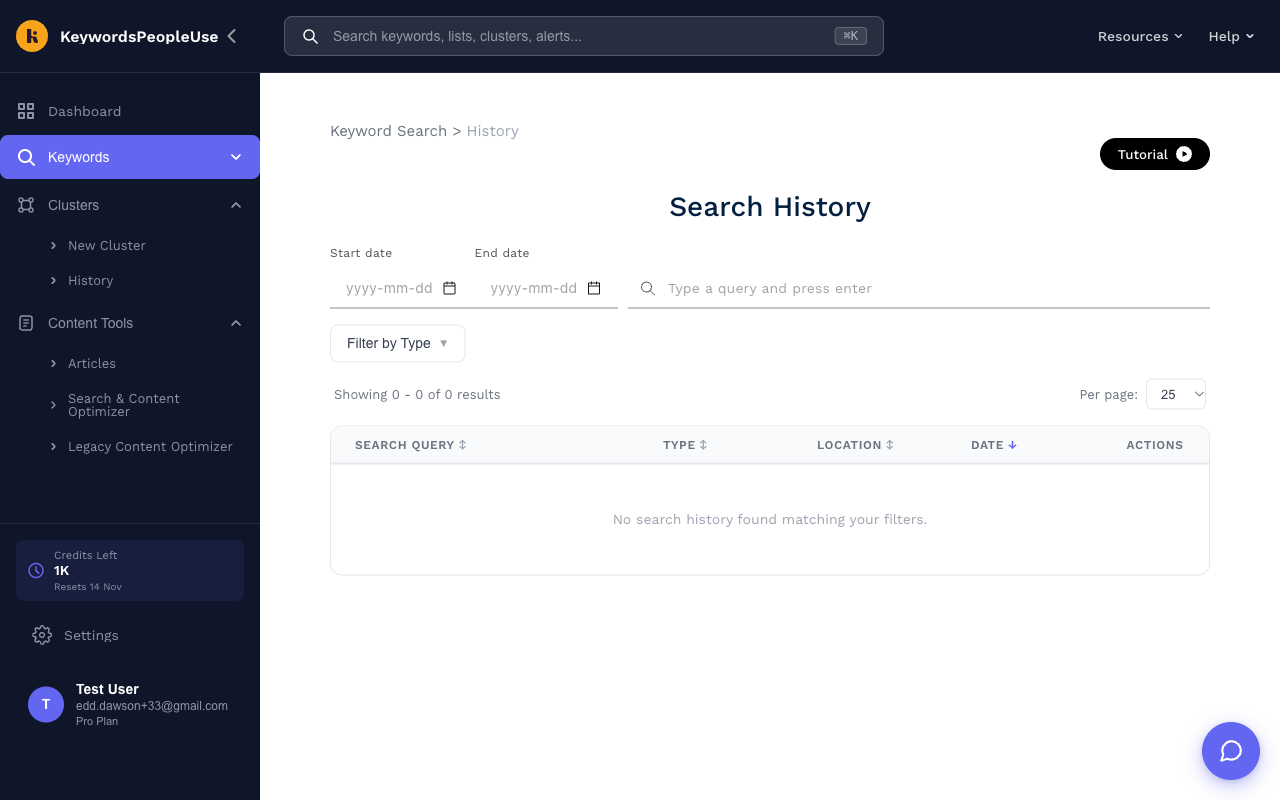
Finding a past search
Open Keywords › History in the sidebar, or click View All on the Recent Searches card on the Dashboard.
- Use Start date and End date to narrow the range.
- Type part of a query in the text box and press Enter.
- Filter by Type shows only particular search types: People Also Ask, People Also Ask (Deep), Keyword Discovery, Autocomplete, Reddit & Quora, Content Explorer, Semantic Keywords or AI Assistant.
- Change Per page to see more rows at once, and click the column headings to sort.
You can also press ⌘K / Ctrl+K anywhere and start typing to search your history from the top bar.
Reopening a result
Click the query to reopen the full result with all its tabs: Map, Data, Keyword Clusters, Related Searches and any AI tabs you had generated. Reopening a result is free; it does not use a credit.
The download icon on each row exports that search as CSV without opening it.
Bulk searches
A Bulk Search appears in history as a single row labelled "Bulk Search". It shows "Processing…" until every keyword has been searched, after which you can download the combined CSV from the row.
How long history is kept
| Plan | History kept for |
|---|---|
| Free (legacy) | 24 hours |
| Lite | 1 month |
| Standard | 1 year |
| Pro | 2 years |
| Unlimited | Unlimited |
If you need a result for longer than your plan keeps it, export it as CSV or save the keywords to a Keyword List, which never expires.