
Finding your way around
Once you are logged in, KeywordsPeopleUse has a sidebar on the left, a top bar with a global search, and the main working area in the middle. This page explains what each part does.
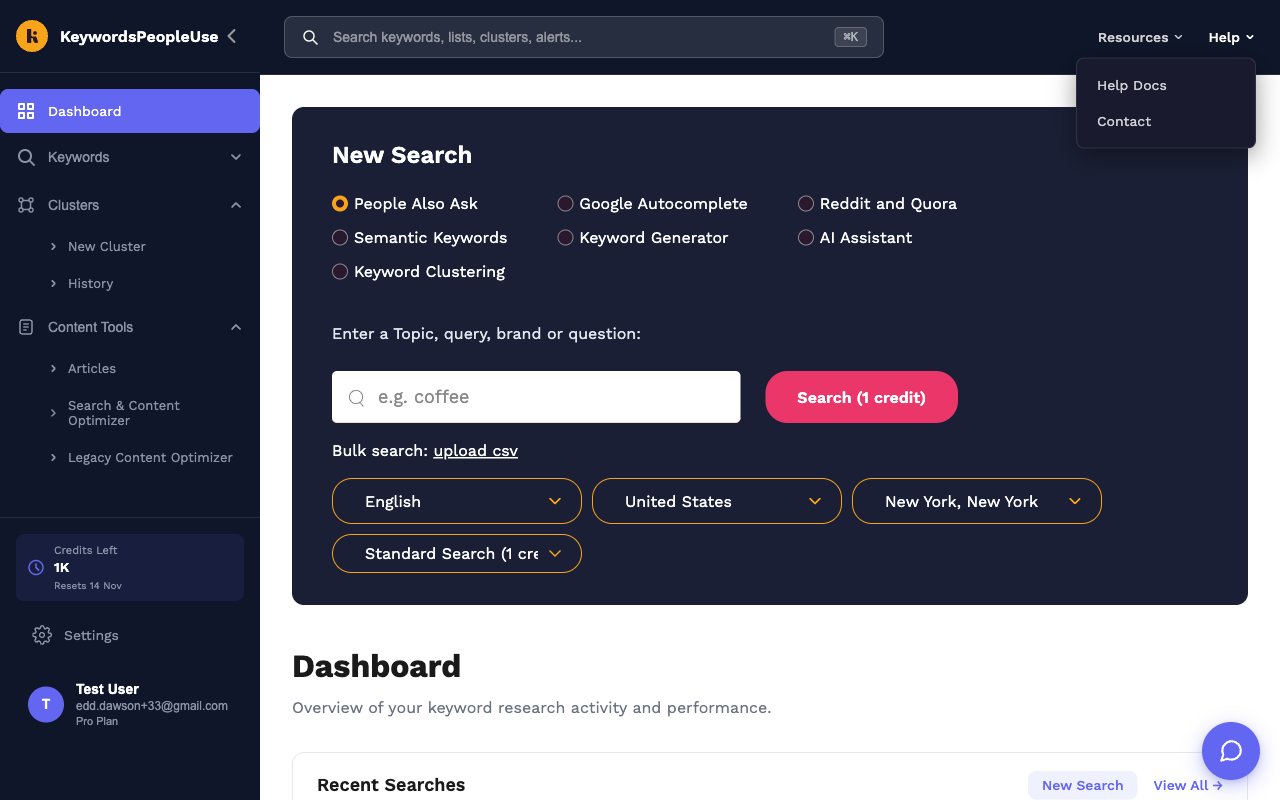
The sidebar
- Dashboard. The home page. It holds the New Search panel plus four summary cards: Recent Searches, Recent Lists, Recent Alerts and Recent Clusters. Each card has a View All link and a shortcut button (New Search, New List, New Alert, New Cluster).
- Keywords. Expands to New Search, Lists (Keyword Lists), Alerts (Search Alerts) and History (Search History).
- Clusters. Expands to New Cluster (the Keyword Clustering form) and History (your finished and in-progress clustering jobs).
- Content Tools. Expands to Articles (drafts created by the AI Assistant), Search & Content Optimizer (the Google Search Console integration) and Legacy Content Optimizer (the older version of that tool).
- Credits Left. How many credits remain this billing period and the date they reset. Pay As You Go credits are included in the number. See Understanding credits.
- Settings. Your plan, API key, team, password and account deletion. See Account Management. Settings is hidden while you are working inside someone else's team account.
- Your name and plan. Click it to Switch Account between your own account and any teams you belong to, or to Logout.
The ‹ arrow next to the logo collapses the sidebar down to icons.
The top bar
- Search keywords, lists, clusters, alerts… is a global search across everything you have done. Type at least two characters to see matches grouped by Keyword Searches, Lists, Clusters and Search Alerts. The keyboard shortcut is ⌘K on Mac or Ctrl+K on Windows.
- Resources links to our SEO guides, quick tips, glossary and managed service pages.
- Help opens this help centre (Help Docs) or the Contact page.
Getting help
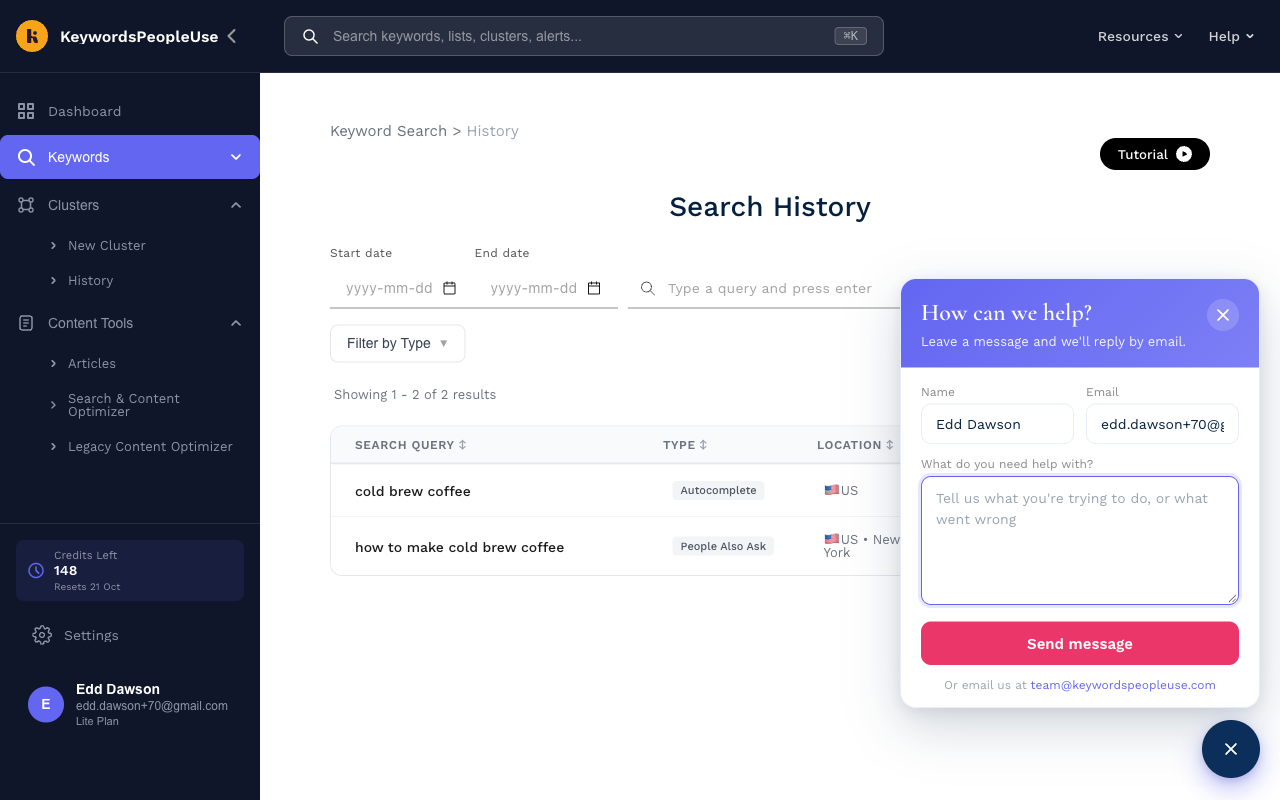
The round button in the bottom-right corner of every page opens a short form. Tell us what you need help with and we reply by email, usually within a working day. You can also email team@keywordspeopleuse.com directly.
Cookie banner and pop-ups
The first time you visit you will see a cookie notice and, after logging in, a short "What's new" message. Tick Don't show this again on the pop-up if you do not want to see it on every login.