
Articles and AI content generation
Several places in KeywordsPeopleUse can write a draft article for you. All of them save the draft to the same place, Content Tools › Articles, where you can edit it, tag it and download it.
Ways to generate an article
- AI Assistant › Article with FAQ's. Enter a keyword and the assistant writes a complete article with an FAQ section. See AI Assistant.
- Content Explorer › Article Outline › Generate Article. The outline built from the pages that rank for your keyword becomes a full draft. See Content Explorer.
- Semantic Keywords › Keyword Groups › Generate Article. Each AI-generated keyword group has its own Generate Article button, producing a draft that covers the terms in that group. See Semantic Keywords.
Each generation costs 1 credit. When it finishes you will see "Article generated and saved".
The Articles page
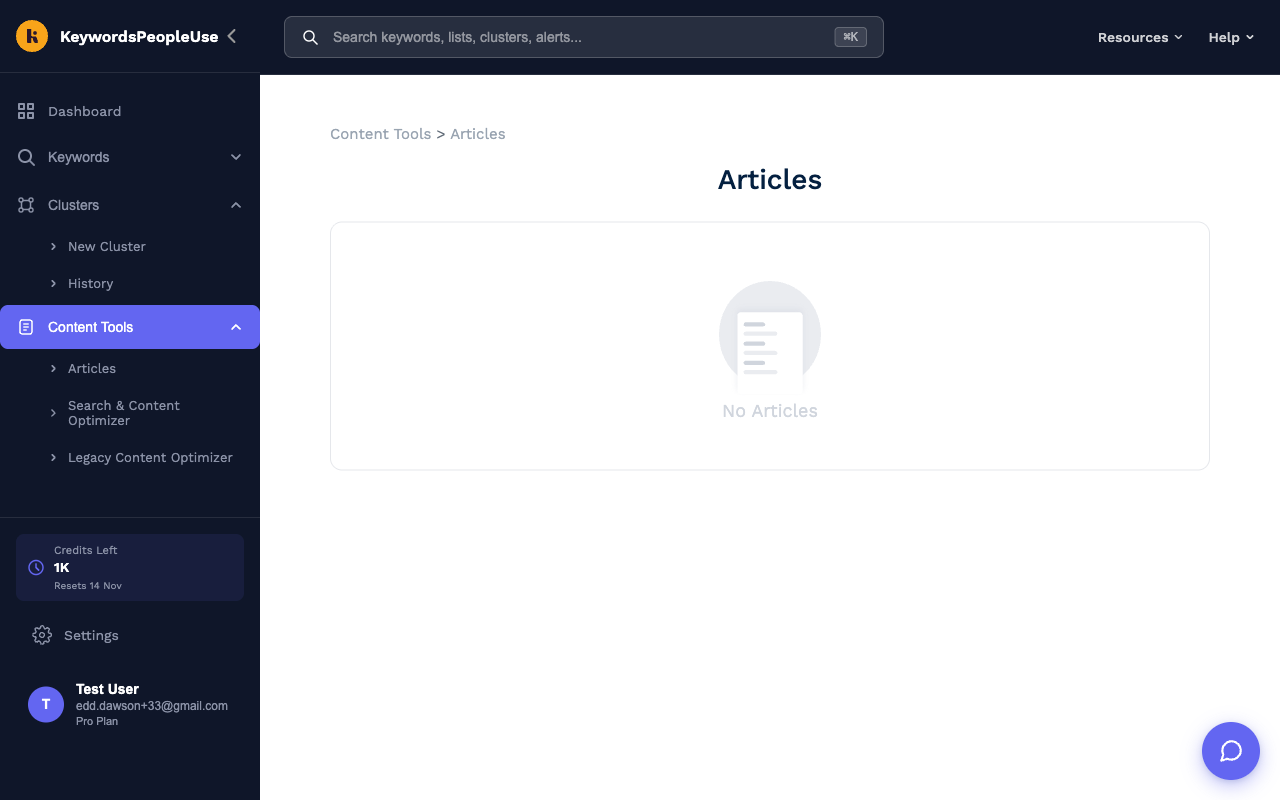
Open Content Tools › Articles in the sidebar. Every draft is listed with its title and the date it was created. Click a title to open the editor, or use the bin icon to delete a draft.
The editor
Inside an article you can:
- Edit the text directly. Use the format dropdown to switch a block between Paragraph and heading levels H1 to H6.
- Download the article as HTML or Markdown, ready to paste into your CMS.
- Give the article a topic such as
Coffee > Coffee Brewing > French Press. Topics let you group related drafts into a hierarchy, which is handy when you are building out a content hub from a topical map or a keyword cluster.
A note on quality
AI drafts are a fast first pass, not a finished page. Check every fact, add your own experience and examples, and make sure the draft actually answers the questions you found in your research. Google rewards content that is helpful and original; a lightly edited AI draft rarely is.