
Running your first search
Every search in KeywordsPeopleUse starts from the New Search panel at the top of the Dashboard. This article walks through one People Also Ask search from start to finish, then explains the results screen that every search type shares.
The New Search panel
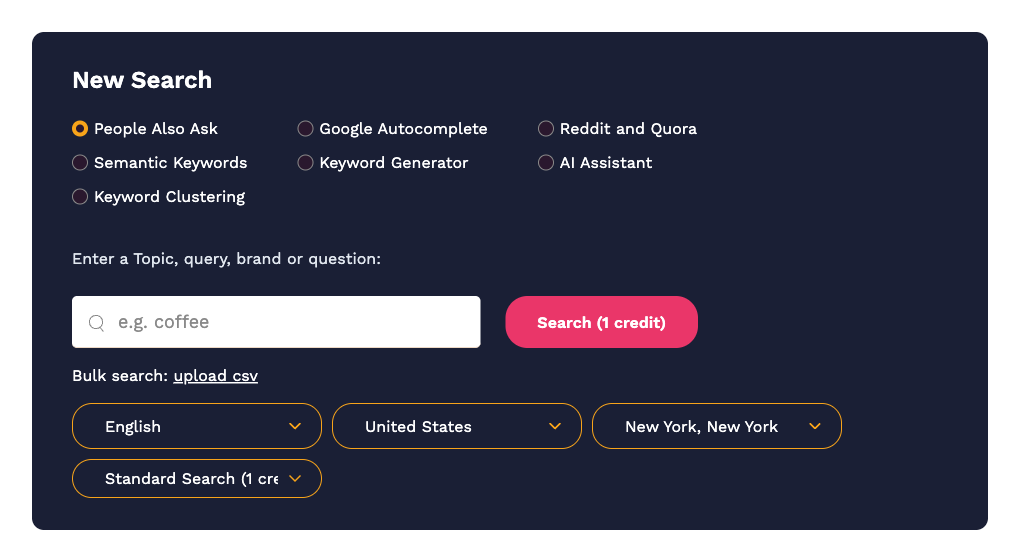
- Pick a search type with the radio buttons: People Also Ask, Google Autocomplete, Reddit and Quora, Semantic Keywords, Keyword Generator, AI Assistant or Keyword Clustering. The panel changes slightly depending on what you pick.
- Enter a topic, query, brand or question in the search box. Keep it as a real search phrase, for example
how to make cold brew coffeerather than a list of keywords. Queries are limited to 256 characters. - Choose the language and country. These control which Google (or Reddit/Quora) results we look at. Most search types support 150 languages and 239 countries.
- Optionally choose a city. The third dropdown lets you search from a specific city. This matters for People Also Ask and clustering, where Google's results vary by location. For the other search types the city is recorded in your history but does not change the results. See Locations, languages and cities.
- For People Also Ask only, choose Standard Search (1 credit) or Deep Search (4 credits). See Deep Search.
- Click Search. The button shows how many credits the search will use.
A search normally takes a few seconds. People Also Ask searches can take longer because we are clicking through Google live, and you will see "Still working on it…" while that happens. If a search returns nothing at all, the credit is refunded automatically.
The results screen
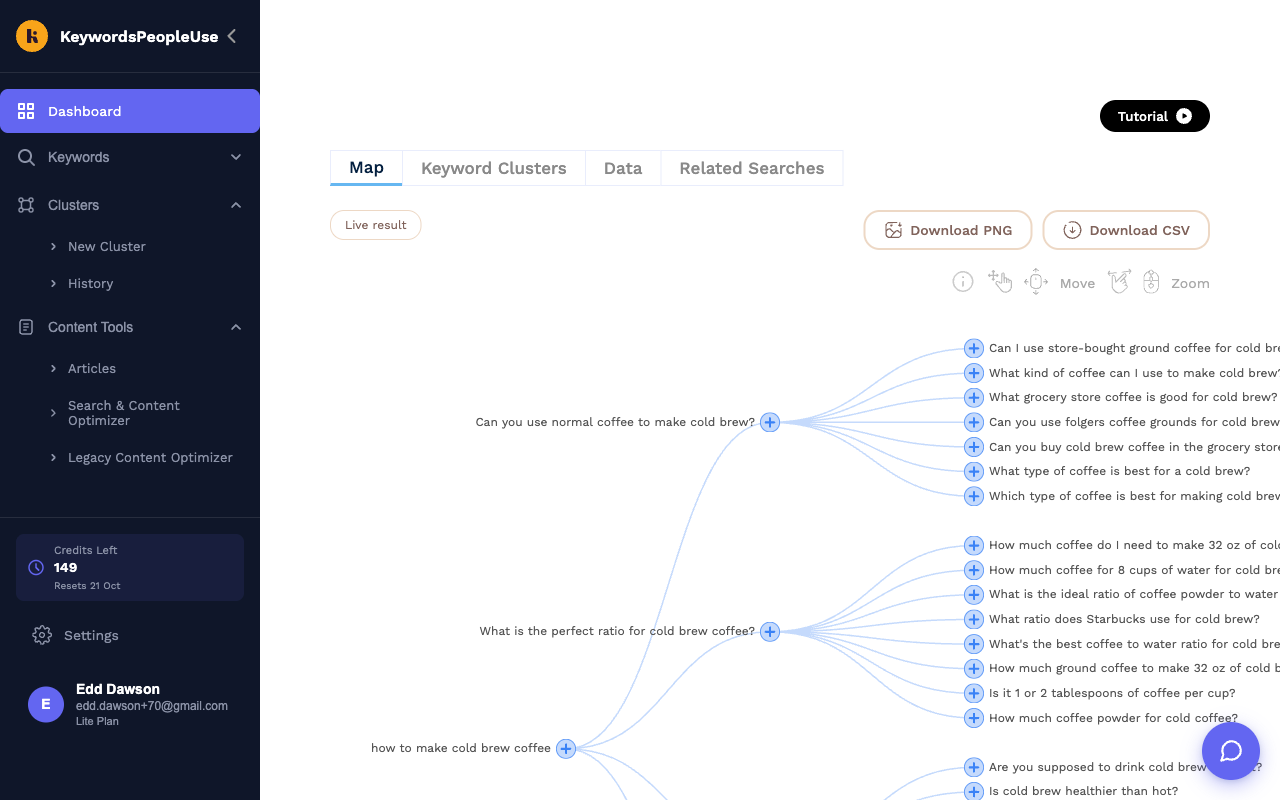
Results open underneath the search panel with a row of tabs. Which tabs you see depends on the search type, but these are the common ones:
Map
A visual tree (or a radial diagram for Autocomplete-style searches) showing how the questions and keywords relate to each other. You can drag to move around and scroll to zoom.
- Download PNG saves the whole map as an image. See Image export.
- Download CSV saves the data behind the map. See CSV export.
- In a standard People Also Ask search, clicking the + on any question runs a new search for that question, so you can keep digging.
The small label next to the tabs tells you whether the result is a Live result or was Cached today / Cached yesterday. Cached results come from a search that was already run recently and are returned instantly.
Data
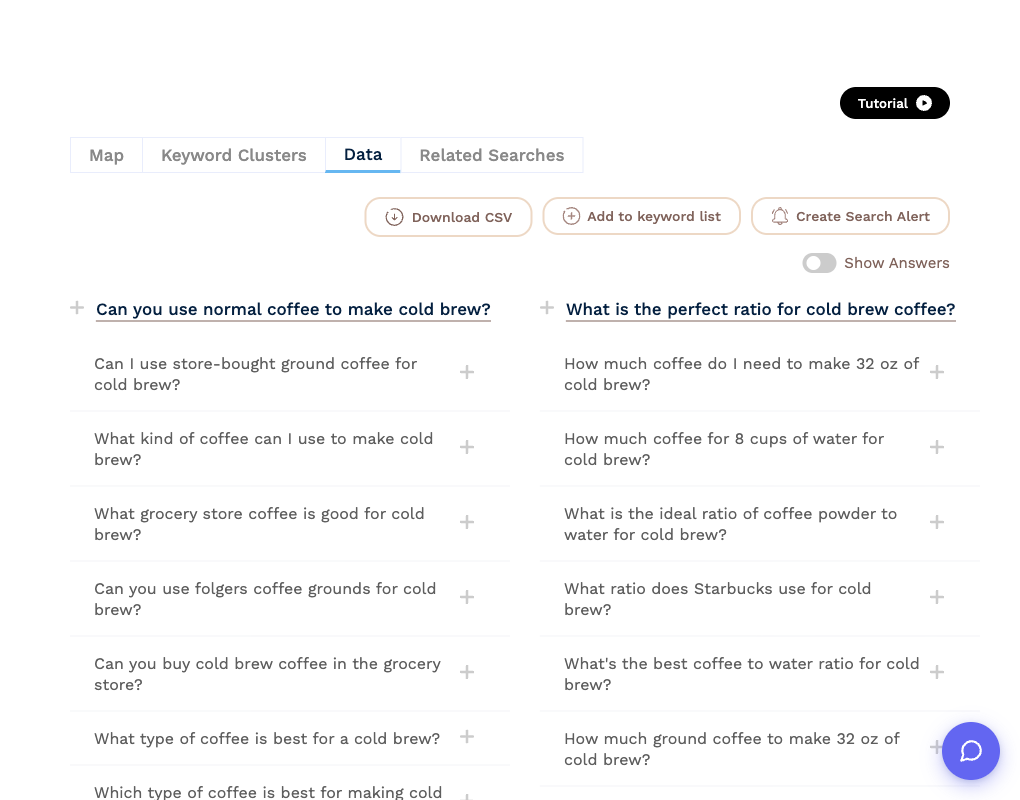
The same results as a plain list, grouped under their parent question. From here you can:
- Download CSV the full data.
- Add to keyword list to save keywords. Use the + next to any single keyword to drop it into your default list, or open the menu to choose a list, Create New List, or Save All. See Keyword Lists.
- Create Search Alert to re-run this exact search on a schedule and get emailed about new questions. See Search Alerts.
- For People Also Ask, flick Show Answers to reveal Google's featured answer and the page it came from under each question.
Keyword Clusters
Sends every keyword in the result to the Keyword Clustering tool, which groups them by the pages that rank for them. The tab tells you how many credits this will use (1 credit per 10 keywords) before you click Cluster Keywords.
Related Searches
Suggested follow-up searches, grouped by search type. Click any chip to run that search (1 credit).
AI tabs
Some search types have an extra tab marked with a sparkle icon, such as Keyword Groups (Semantic Keywords), Top 10 Keywords (Keyword Generator) or Article Outline (Content Explorer). These use AI and cost 1 credit per generation. See AI Tools.
Tutorial
The black Tutorial button above the tabs plays a short video for the search type you are looking at.
After the search
Everything you run is saved automatically in Search History, so you do not need to export as you go. Open Keywords › History in the sidebar at any time to reopen a result exactly as it was.