
Keyword Lists
Keyword Lists let you collect the keywords and questions you care about from any search, in one place, and share them with anyone. Think of them as a shopping basket for keyword research: you browse results, drop the good ones into a list, and hand the list to a writer or client when you are done.
Saving keywords from a search
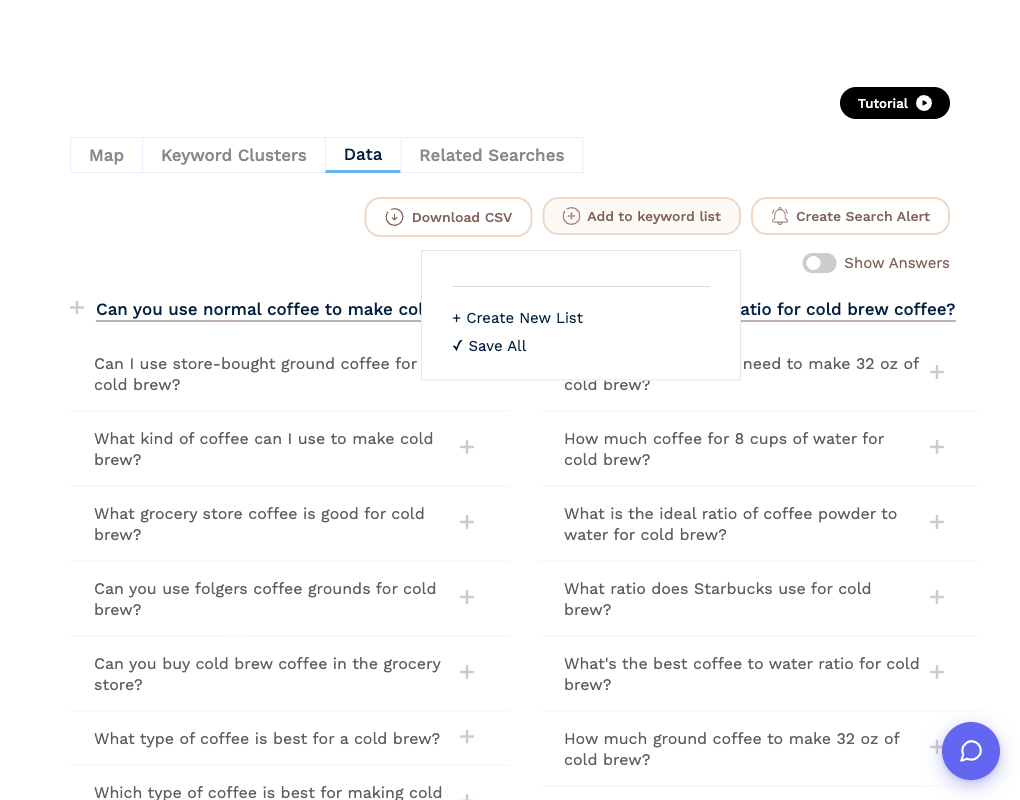
On the Data tab of any result:
- Click the + next to a single keyword to add it to your default list. The icon turns into a tick and a small "Saved to {list}" message confirms it.
- Click Add to keyword list to open the list menu. From there you can pick any list to add to, Create New List by typing a name and clicking the tick, or Save All to add every keyword in the result to your default list in one go.
Every account starts with a list called Draft, which is the default list until you choose another one. The Draft list cannot be deleted.
Managing your lists
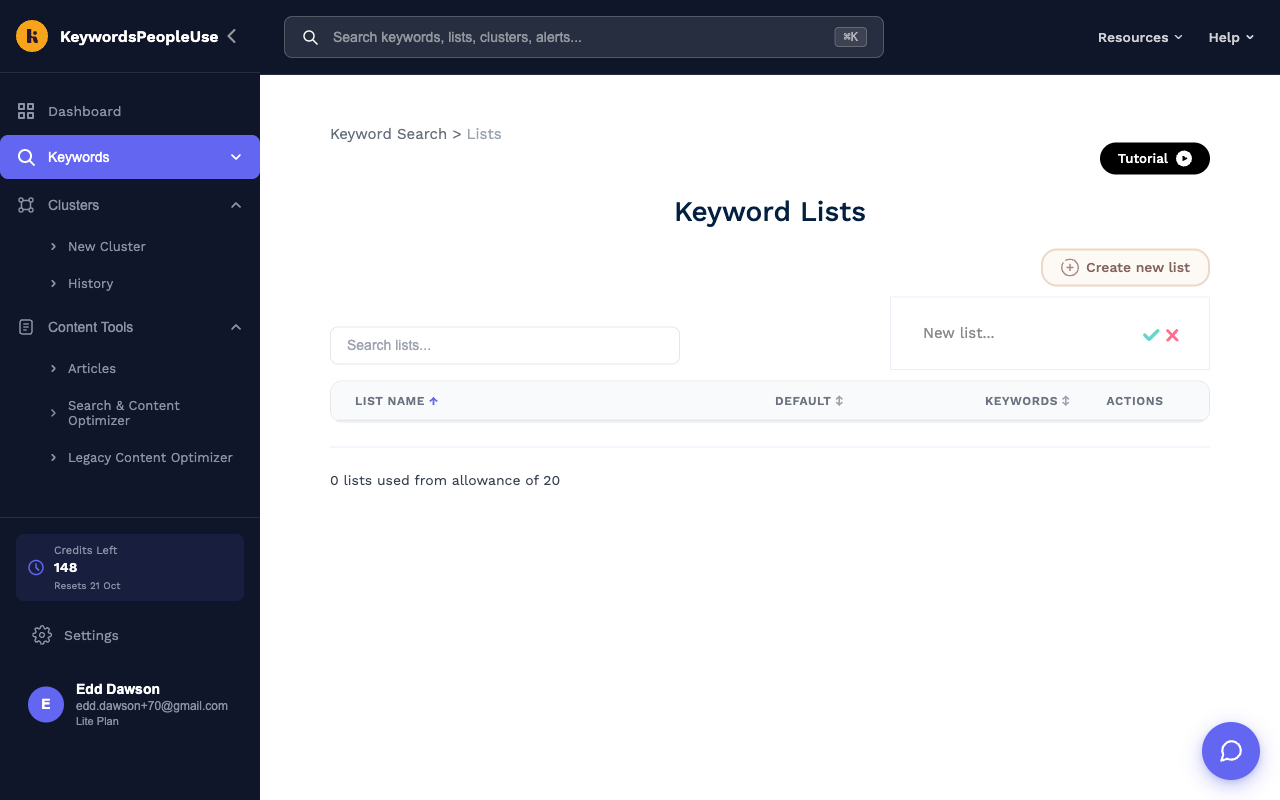
Open Keywords › Lists in the sidebar. The page shows every list with its keyword count, and a line at the bottom showing how many of your plan's lists you have used.
- Create new list adds an empty list. Type a name and click the tick.
- Set as default on a list makes it the target for the + buttons in search results.
- The icons under Actions let you download the list as CSV, share it, or delete it.
- Use the search box to filter lists by name.
Inside a list
Click a list name to open it. From the list page you can:
- Add keyword… at the bottom of the table to type in keywords of your own that did not come from a search.
- Edit or delete individual keywords with the icons on each row.
- Cluster Keywords to send the whole list to Keyword Clustering. You will be asked which country to cluster for.
- Download CSV to export the list.
- Share to turn on a public link, explained below.
Sharing a list
Lists are private by default. Click Share on a list and turn on Enable shared link. The page shows a link in the form https://keywordspeopleuse.com/share/{id} with a copy button. Anyone with that link can view the list, even without a KeywordsPeopleUse account. Turn the toggle off at any time to make the list private again; the link then shows "List Not Found".
Limits
| Plan | Lists | Keywords per list |
|---|---|---|
| Lite | 20 | 500 |
| Standard, Pro, Unlimited | 50 | 500 |
If you hit the limit you will see "Max lists number reached" or "Max number of keywords allowed: 500". Delete a list or split your keywords across lists to continue.
Video walkthrough
This video was recorded on an earlier version of the design, but the steps are the same.