
Team members and shared accounts
Every subscription plan lets you share your account with as many people as you like. Team members log in with their own email and password, but their searches, lists and alerts live in your account and use your credits.
Team sharing is included on the Lite, Standard, Pro and Unlimited plans.
Inviting someone
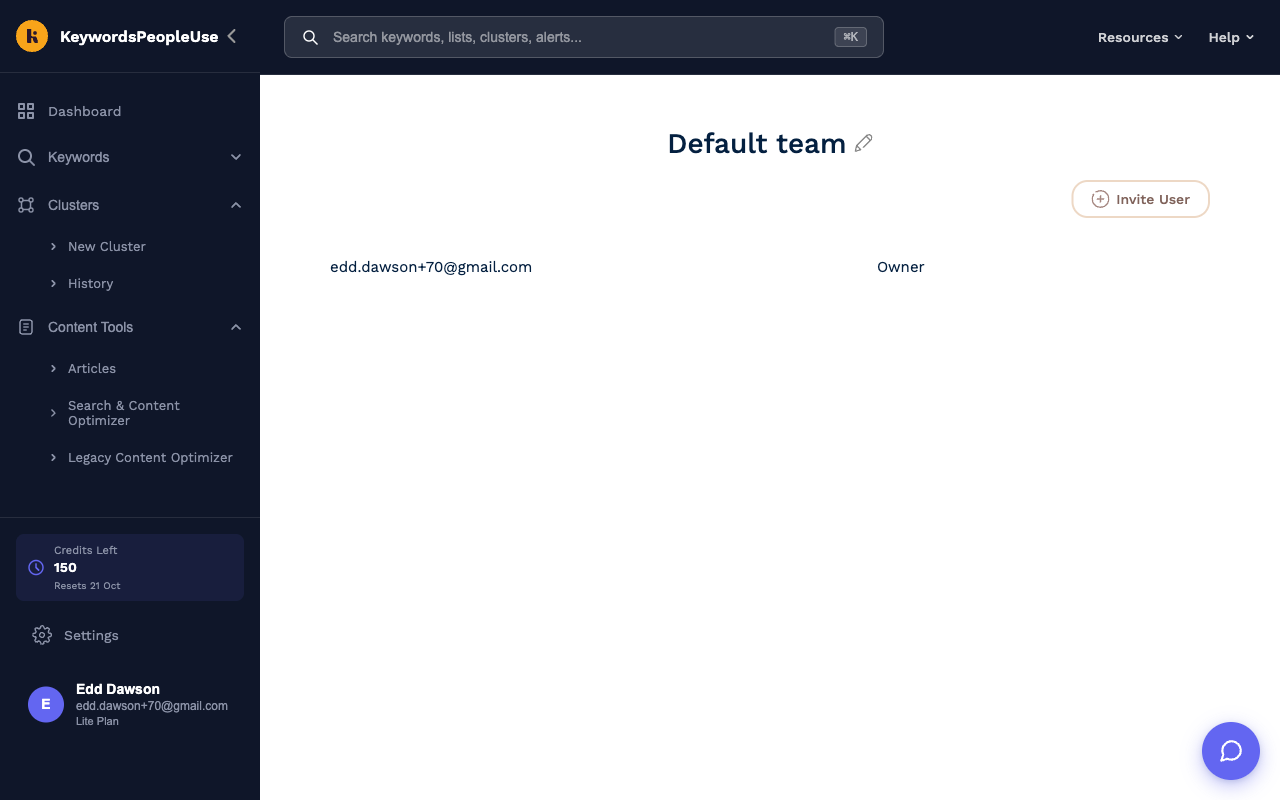
- Go to Settings and click Manage Team Members under the Team heading. This opens keywordspeopleuse.com/team.
- Click Invite User.
- Type their email address and press Enter or click the tick.
What happens next depends on whether they already use KeywordsPeopleUse:
- New to KeywordsPeopleUse: they receive an invitation email. The link opens a sign-up form headed "Accept … invitation". Once they set a name and password they are in your team.
- Already have an account: they receive an email saying they have been added. The next time they log in your team appears under Switch Account in the sidebar.
If you see "User already invited" or "User is already in the team", the invitation has already gone out or been accepted.
Roles
Each row on the Team page has a role dropdown:
- Owner is you. It cannot be changed.
- Member is the default. Members can run searches, use lists and alerts, and everything else in the account.
- Admin can additionally open the Team page to invite and remove people and rename the team.
Renaming the team
Click the pencil icon next to the team name at the top of the Team page, type a new name and click the tick. The name is shown to members in their account switcher.
Removing someone
Click the bin icon on their row. They lose access to your account immediately. Their lists and search history stay in your account, and any Search Alerts they created are paused rather than deleted, so nothing keeps spending your credits.
Working as a team member
When you belong to a team, the account switcher at the bottom of the sidebar shows Switch Account. Pick the team to work inside it, or your own account to use your own plan. While you are inside a team:
- The Credits Left box shows the team owner's credits.
- Settings is hidden, because plan, billing and API settings belong to the owner.
- Your searches, lists and alerts are saved in the team, where the owner and other members can see them.
If you were invited to a team and have no plan of your own, you must use the team's account to search. Trying to search from your personal account shows a message asking you to switch to the team or start your own trial.