
Creating your account
There are two ways into KeywordsPeopleUse: start a free trial of a paid plan, or accept an invitation to join someone else's team. This article covers both, plus signing in with Google and the short setup wizard you see the first time you log in.
Start a 7-day free trial
- Go to keywordspeopleuse.com/trial-signup or click Start 7-Day Trial anywhere on the site.
- Enter your email address and choose the plan you want to try. Standard is selected by default. You can change plan at any time later.
- Click through to checkout. A card is required to start the trial, but you are not charged until the 7 days are up, and you can cancel before then from Settings without paying anything.
- Check your inbox. We send a link to set your password. Click it, choose a password, and you are logged in.
During the trial you get the full plan: the plan's monthly credits, every search type, lists, alerts, clustering and the API. When the trial ends the subscription continues on the plan you chose unless you cancel.
Sign up or log in with Google
On the login and sign-up pages you can click Sign In with Google / Sign Up with Google instead of using a password. Your Google account's email becomes your KeywordsPeopleUse login.
If you signed up with Google you never need to set or change a password with us. See How do I change my password? for the details.
Joining someone's team
If a colleague has invited you, you will receive an email with an invitation link. Clicking it opens a sign-up form headed "Accept … invitation". Fill in your name and a password and you will be added to their team and use their credits. If you already have an account, log in and the invitation is applied to it.
See Team members and shared accounts for how team accounts work.
Verify your email
Accounts created with a password need to be verified. Look for the verification email and click the link. Until you verify you cannot run searches. If the email has not arrived after a few minutes, check your spam folder, then use the help button in the bottom-right corner of the site and we will resend it.
The first-login setup wizard
The first time you log in we ask a few quick questions to set you up. You can click Skip for now on any step and come back to it later.
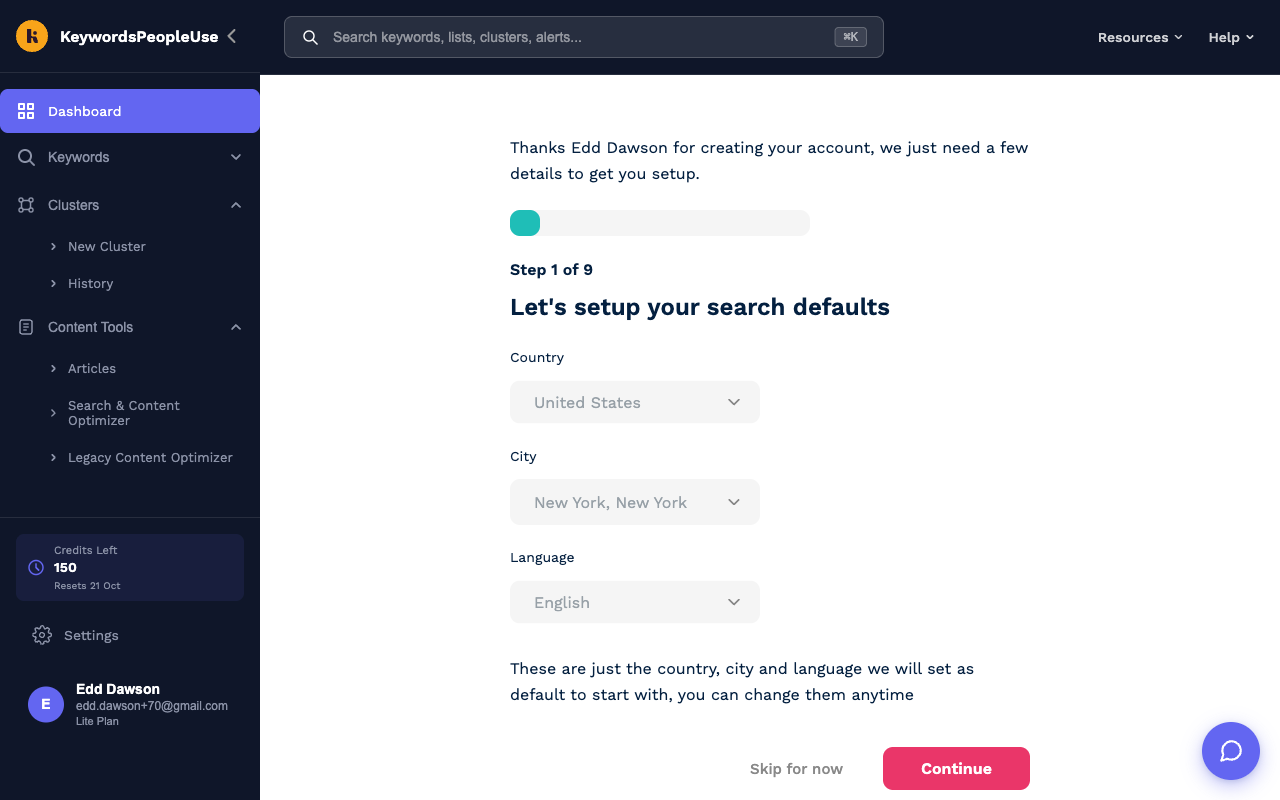
- Search defaults. Choose the country, language and optional city you search in most often. These become the defaults on the search form, so you are not re-selecting them every time. You can still change them for any individual search.
- About you. A few optional questions about your organisation and how you heard about us.
- Search Alerts. An introduction to alerts, which email you when new questions appear for a topic.
- Keyword Lists. An introduction to lists for saving the keywords you find.
- Invite your team. Add colleagues so they can share your account and credits. See Team members.
Once you finish, you land on the Dashboard. Running your first search picks up from there.